File Conversion Guide
How to Convert Images Between JPG, PNG and WEBP
Converting images online helps you choose the right format for photography, graphics, and web delivery. This guide explains formats, when to use them, and how to convert images safely.
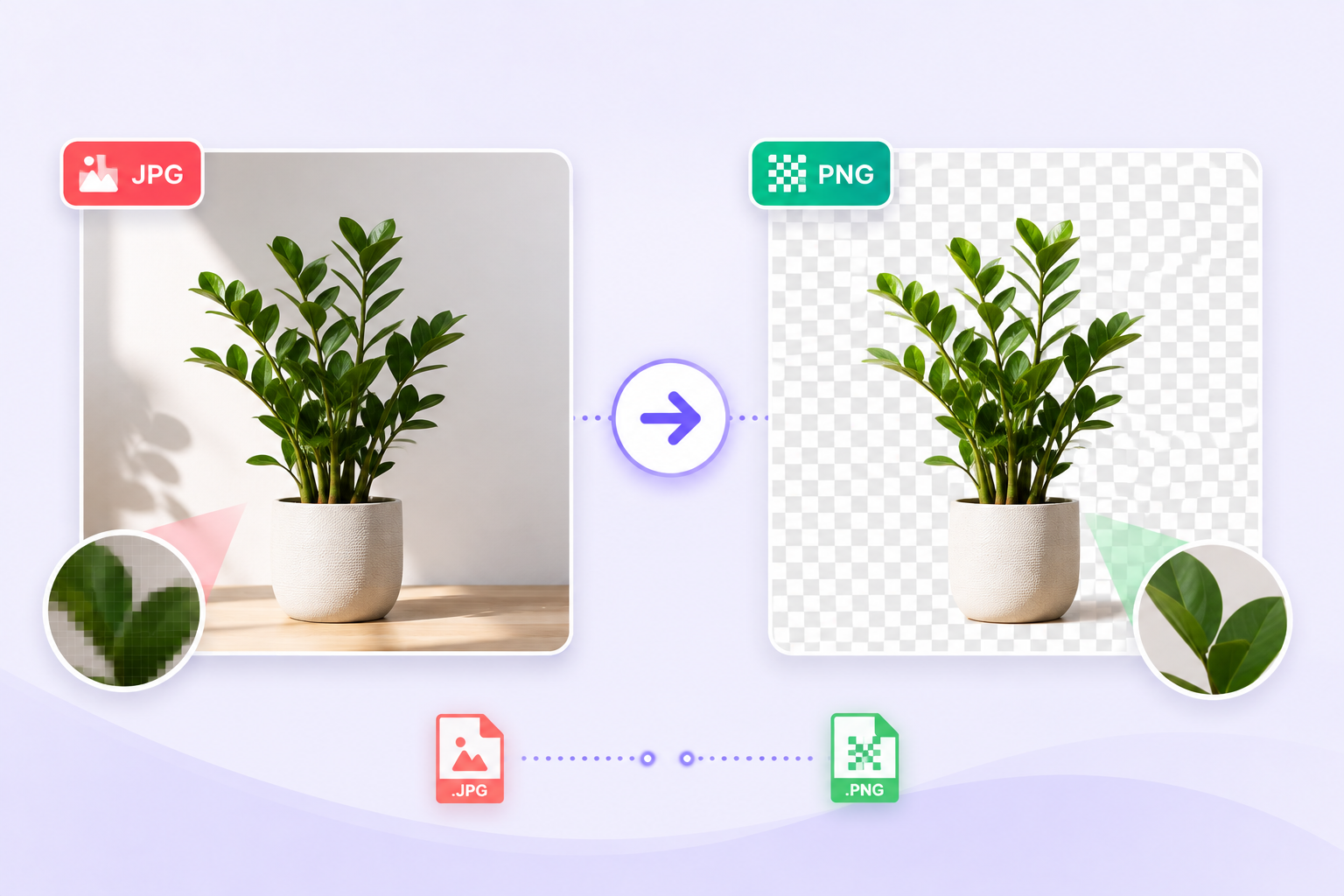
Introduction
Different image formats exist because each balances quality, file size, and capabilities in its own way. You may need to convert between JPG, PNG, and WEBP to meet platform requirements, add transparency, or improve website performance.
An online image converter saves time: no software to install, instant previews, and quick downloads. Whether you need JPG to PNG, PNG to WEBP, or WEBP to JPG, a reliable converter makes the process painless.
What are JPG, PNG, and WEBP?
JPG (JPEG)
JPG is the most common format for photographs. It uses lossy compression to deliver small file sizes at the cost of discarding some image data. Use JPG when file size matters and you don't need transparency.
PNG
PNG uses lossless compression and supports transparency. It preserves exact pixel values, making it ideal for logos, icons, screenshots, and graphics with sharp edges.
WEBP
WEBP is a modern format developed by Google that offers excellent compression for both lossy and lossless workflows, including transparency. WEBP often produces smaller files than JPG or PNG while maintaining comparable quality, making it a top choice for websites.
JPG vs PNG vs WEBP
Here’s a quick comparison to help you choose the best image format for each use case.
- File size: JPG (small) < WEBP (smallest often) < PNG (largest for photos)
- Image quality: All can be high quality; JPG uses lossy compression, PNG is lossless, WEBP can be lossy or lossless.
- Transparency: PNG and WEBP support transparency; JPG does not.
- Compression type: JPG = lossy, PNG = lossless, WEBP = lossy or lossless.
- Browser compatibility: Modern browsers support WEBP; JPG and PNG have universal support.
In short: use JPG for photos, PNG for transparent graphics and exact pixels, and WEBP for the best balance of quality and file size on the web when supported.
Why convert image formats?
Converting image format can reduce file size, improve site performance, or enable features like transparency. Practical uses include preparing product images for ecommerce, optimizing photos for blogs, and converting graphics for email or social media.
- Reduce file size for faster pages.
- Enable transparency for overlays and logos.
- Prepare images for platforms with specific format requirements.
- Improve mobile loading and user experience.
Step-by-step guide
- Open the Image Converter tool. Go to the Convert page under Tools.
- Upload your image. Select a JPG, PNG, or WEBP file from your device.
- Choose the desired output format. Pick JPG, PNG, or WEBP depending on your needs.
- Preview the converted image. Check visual quality and transparency if applicable.
- Convert the image. Click Convert to process the file in the browser.
- Download the converted file. Save and use the file in your project.
Supported conversions
- JPG → PNG: Use when you need transparency or lossless editing for a photo-derived graphic.
- PNG → JPG: Use to reduce file size for photos that don't require transparency.
- JPG → WEBP: Convert photos to WEBP for smaller files and faster loading.
- PNG → WEBP: Preserve transparency in a smaller file for web delivery.
- WEBP → JPG: Convert to JPG for compatibility with older tools or platforms that don't support WEBP.
- WEBP → PNG: Convert to PNG when you need lossless output or wide compatibility with transparency.
Best practices
- Use JPG for photographs and images without transparency.
- Use PNG for logos, icons, and images that need transparency or sharp edges.
- Prefer WEBP for websites when browser support is available to save bandwidth.
- Keep an original copy before converting so you can reconvert with different settings.
- Choose the correct format based on the final use—web, print, or archival.
Common mistakes
- Saving logos as JPG instead of PNG, which removes transparency and can add artifacts.
- Using PNG for large photographic images unnecessarily, increasing file size.
- Ignoring browser compatibility when serving WEBP without fallbacks.
- Converting the same file repeatedly and degrading quality—always keep originals.
Benefits of our image converter
- Browser-based conversion for fast local processing.
- Quick conversions with instant previews.
- Secure local processing so your files stay private during editing.
- High-quality output that preserves visual fidelity across formats.
- No software installation and mobile-friendly controls.
Frequently Asked Questions
What is the difference between JPG and PNG?
JPG is lossy and ideal for photos; PNG is lossless and supports transparency, making it better for graphics and logos.
Should I use WEBP instead of JPG?
WEBP often offers smaller files with similar quality and supports transparency. Use it when browser support is available for your audience.
Which image format is best for websites?
WEBP is best for modern web delivery when supported; otherwise use JPG for photos and PNG for transparent graphics.
Can I convert PNG to JPG without losing quality?
Converting PNG to JPG is lossy because JPG compresses image data. For photographs this is often acceptable; for graphics with text or sharp edges, PNG is preferable.
Does WEBP support transparency?
Yes, WEBP supports transparency in both lossy and lossless modes, making it versatile for web graphics.
Is the tool free?
Yes—the online image converter is available for everyday conversions to help you work quickly without installing software.
Can I convert images on my phone?
Yes. The converter interface is mobile-friendly so you can convert JPG to WEBP or PNG on the go.
Which browsers support WEBP?
Most modern browsers like Chrome, Edge, Firefox, and Safari (recent versions) support WEBP. Provide fallbacks for older browsers if needed.
Conclusion
Knowing when to convert images between JPG, PNG, and WEBP helps you balance quality, compatibility, and performance. Use JPG for photos, PNG for transparent graphics, and WEBP for efficient web delivery. Try our Image Converter to convert images online quickly and keep your visuals looking great.
Ready to convert? Visit the Image Converter tool and try converting a JPG to WEBP or PNG in seconds.