Image Editing Guide
How to Crop an Image Online
Introduction
Cropping an image is one of the most powerful ways to improve composition, remove distractions, and prepare visuals for a specific layout. Online cropping tools let you make precise edits without installing software, making them ideal for designers, marketers, and creators who need fast, polished results.
In this guide, you will learn how to crop an image online effectively, why cropping matters, and how to avoid common mistakes that can hurt image quality or visual balance.
Why crop images online?
Cropping helps you highlight the most important part of a photo, adapt images to different aspect ratios, and create cleaner visuals for websites, social media, or presentations. Using a browser-based tool gives you instant feedback and avoids the need for desktop editing software.
- Maintain visual focus by removing unnecessary background elements.
- Match the image to specific dimensions for web banners, cards, or thumbnails.
- Create consistent framing across a set of images.
How cropping works
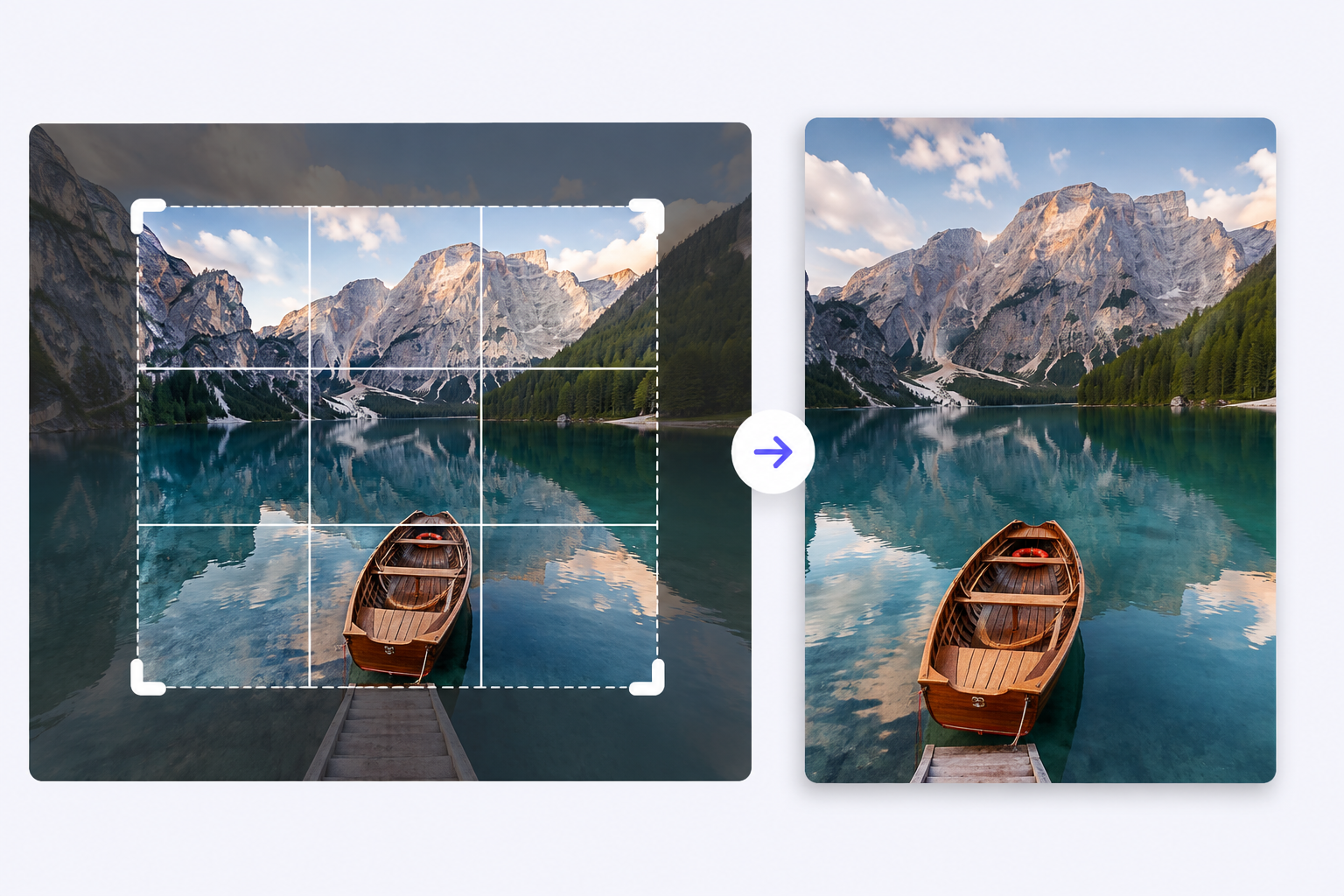
Cropping defines a new boundary for the image and removes everything outside that frame. A good tool keeps the aspect ratio intact while allowing you to reposition the crop area, zoom in, or choose preset sizes for common formats.
Most online tools display the updated preview instantly, so you can confirm the framing before applying the change and downloading the result.
Step-by-step guide
- Upload your image or drag it into the crop tool. High-resolution images work best for flexible editing.
- Choose the crop area by dragging the handles. Use preset ratios, such as 16:9 or square, if you need a standard format.
- Adjust the crop frame until the most important content is centered and balanced. Look for clean edges and consistent spacing.
- Preview the final crop and make any fine adjustments to ensure nothing important is cut off.
- Apply the crop and download the edited image in your desired format.
Best practices
- Preserve the subject's headroom and spacing when cropping portraits.
- Keep an even margin around product photos for a polished layout.
- Use a consistent aspect ratio across related images for a unified presentation.
Common mistakes
- Avoid cropping too tightly, which can make the image feel cramped or cut off key elements.
- Don’t lose important context by removing too much background without improving composition.
- Check the crop for balance and alignment before downloading.
Supported formats
The crop tool supports common image formats including JPG, JPEG, PNG, and WEBP. These formats are widely compatible and retain image quality after editing.
Use cases
- Prepare cover photos and hero images for websites and landing pages.
- Create social media posts with consistent framing across multiple visuals.
- Crop product photography for online catalogs and ecommerce listings.
Frequently Asked Questions
Can I undo a crop?
Most online tools allow you to preview and adjust the crop before finalizing. If you need further edits, simply re-open the image and adjust the frame again.
Will cropping reduce image quality?
Cropping does not reduce the remaining image quality, but it can reduce the total pixel dimensions if the cropped area is smaller. Always use a high-resolution source when possible.
Can I crop images for social media formats?
Yes. Online cropping tools often include presets for popular social media ratios, making it easy to prepare images for Instagram, Twitter, LinkedIn, and more.
Conclusion
Cropping images online is a fast, accessible way to improve composition and match visuals to your layout. With the right tool, you can refine your image, preserve quality, and create more polished content in minutes.